How to Ship an Animated Photo with a Reduced-Motion Fallback
Build an exhibit hero around a still photograph, offer motion on request, and test what visitors see with a keyboard, a narrow screen, or reduced motion enabled.
A visitor standing in front of a model railway might appreciate a slow move from the whole layout to the tiny station clock. Someone opening the exhibit page on a phone should be able to see the clock, read the caption and move on without setting a train in motion. Design that second visit first.
Choose the photograph that can carry the page
Use a photograph cleared for web display and editing. Pick a poster crop that shows both the station and the detail the caption describes. Write the caption as ordinary page text. If the clock face disappears on a narrow screen, add a still detail below the main picture. Visitors who skip playback deserve the same exhibit.
Give the image an appropriate text alternative. Keep the exhibit title, credit and date outside the picture, where they can wrap and grow. Reserve space for the image as the page loads so the play control stays where the visitor first saw it.
Make one move by hand
Duplicate the still in a local video editor. Set the opening crop to the poster and the closing crop to the station, then play the move once in silence. Stop just before the clock face becomes soft. If the destination needs a larger enlargement, choose a higher-resolution still or shorten the move. Export a clip and retain the poster as an independent asset.
Use a player with visible controls and omit autoplay. Name the action in the surrounding text, for example “Play a five-second view of the station.” A visitor can decide whether that detail is worth a closer look.
Decide whether the subject needs to move
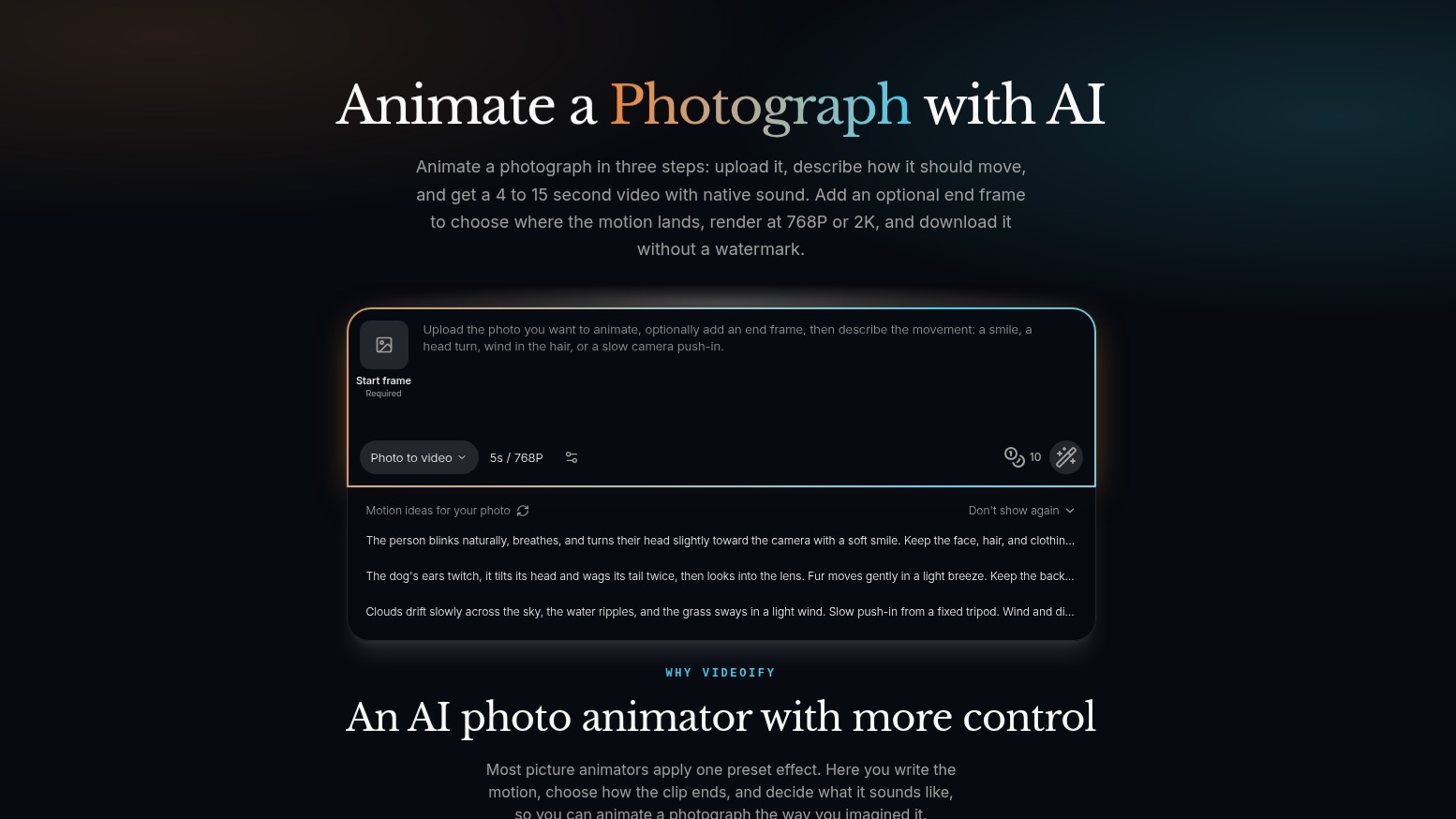
A slow crop works for directing attention. If the exhibit calls for a separate imagined movement, you can generate a short motion clip with an optional end frame from a rights-cleared JPG, PNG or WebP up to 20 MB. Give it one direction such as “steam drifts upward behind the stationary clock.” Supply a compatible end frame if the destination matters. Identify the result as an animation wherever it accompanies documentary material.
Available clips run four to fifteen seconds at 768P or 2K, with native sound and no watermark. A five-second 768P example costs ten credits. The page lists six signup credits when enabled for an account, below the eight-credit minimum for generation here. Monthly and annual subscriptions and one-time credit packs are available. Compare one short result against the poster before budgeting for another. Reject a clip that changes the numerals.
Run the page through two visits
For the first visit, enable reduced motion on the device and reload. Use the operating system preference exposed by prefers-reduced-motion to disable any decorative pan or animated transition around the player. Show the still on arrival. Pressing Tab should reach the play control with a visible focus indicator and without starting the clip. Activate it deliberately, pause, then tab onward. Check that opening or closing the player leaves focus somewhere predictable.
For the second visit, use a narrow viewport with sound off. Start playback and look for a jump between the poster and the first frame. Confirm the controls fit, the caption remains readable and the clock stays in frame. If audio carries an exhibit fact, put that fact in text as well. Finally, simulate a missing clip and confirm the page still presents the photograph and caption.
Record the expected behavior alongside the asset names in the handoff. For example, “Station overview on entry with either motion preference. No automatic movement. Play opens the silent five-second detail, and the caption stays below.” That gives the next editor a concrete acceptance test when the exhibition changes.
Comments
Replies to this content are sent to the original instance.
Log in to comment.
No replies received yet.